
of people using AI services on work devices were using accounts that weren’t the company’s, per Verizon’s 2026 Data Breach Investigations Report.
What goes into those accounts leaves your control.AI Exposure Check · free for companies with 50–500 people
Your people are already using AI. Do you know what it can reach?
Staff paste company data into chatbots, connect AI note-takers to mailboxes and build their own agents. The free check shows your AI, what it can reach, and the fix.
Get the free check67% of people using AI on work devices used accounts that weren’t the company’s. Verizon 2026 Data Breach Investigations Report
- Every AI tool, AI app, agent and MCP connection, in one list
- Who uses or owns each one, and which have no owner
- What each can reach, ranked by risk with the fix
Free and read-only. Built on Centeye Lumen (AI governance and registry) and Centeye Synthwatch (early access).
The problem
AI arrived faster than anyone could set rules for it.
People use AI to save time, and most of it happens out of IT’s sight. Here is what that looks like.
accounts hold an admin role at a 9-person business we watch. The smallest teams have the most admins for their size.
An AI app or agent running on one of those accounts can reach everything that account can.Microsoft Learn says Copilot Studio creates a Microsoft Entra Agent ID for each new agent automatically.
Agents appear as soon as anyone starts building, whether IT planned for them or not.Verizon 2026 Data Breach Investigations Report. Admin figure: Source: Centeye platform data across the businesses Centeye protects, October 2026. Sign-in attempts counted over the last 30 days. No client is named. Copilot Studio detail from Microsoft Learn, November 2026.
What the check finds
Six things every business should know about its AI.
AI tools in use, and by whom
Which AI tools people sign in to and which AI apps they have connected, with a register entry and an owner for each.
AI app access left open
Every AI app connected to mail, files or calendars, what each grant allows, and the ones nobody has used in months.
AI agents and their identities
Agents built in Copilot Studio, and Copilot and Gemini agents. It flags any agent running on a shared admin account or a person’s own login.
What Copilot could surface
Folders shared with everyone, such as payroll or HR, that an AI assistant can read out to anyone who asks.
Data going into AI tools
Add the Lumen browser extension on a few devices to see what gets pasted or uploaded into AI tools, and how much, including on personal accounts. It never reads the content.
MCP server connections
Which MCP servers people’s AI tools connect to, what each one can reach, and which nobody approved, so you can hold or block them.
What it looks like in Lumen
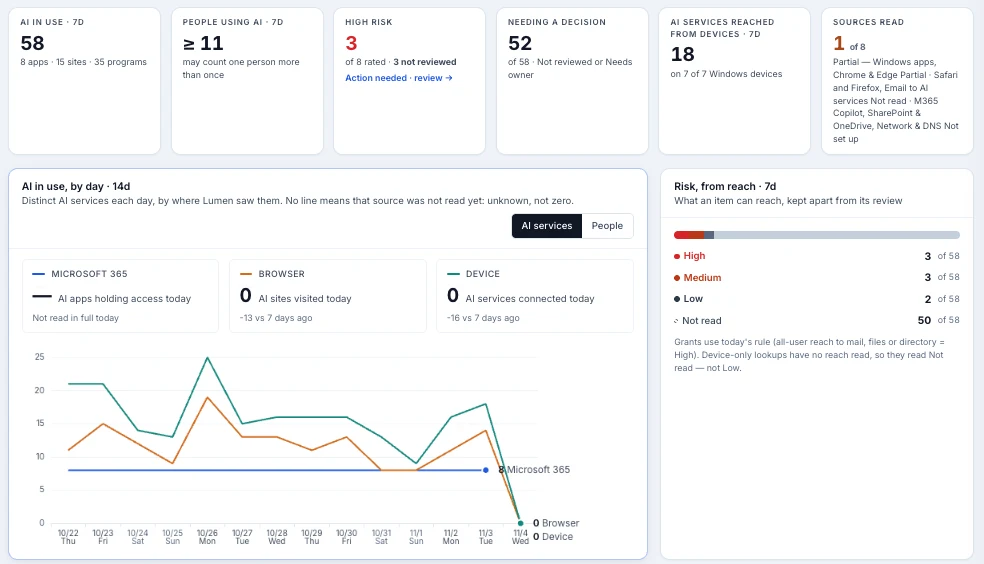
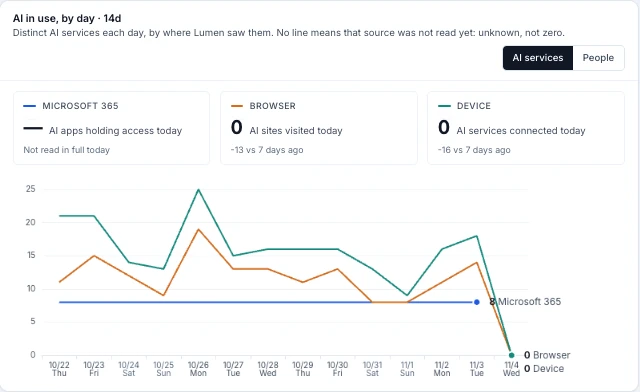
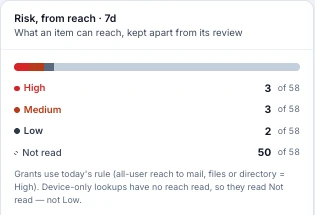
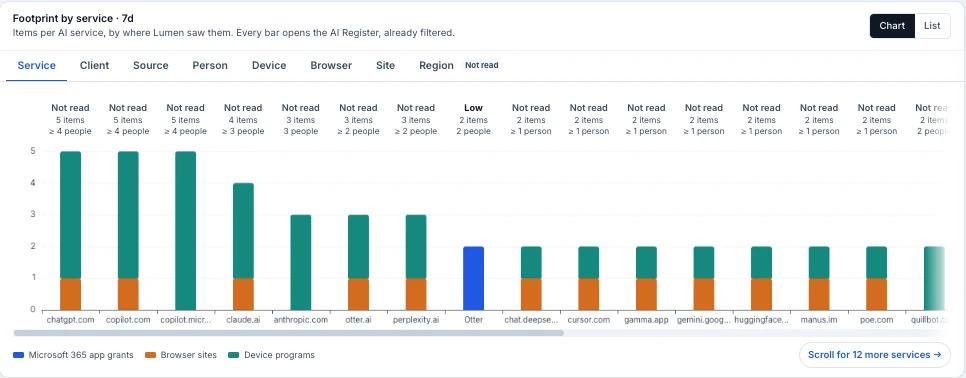
AI use from three sides: Microsoft 365, the browser and the device.
Real Centeye Lumen charts from a test client. Your check is built from the same views.
The report
One list. Riskiest first.
A plain-language report for you and whoever runs your IT.
AI exposure · Harbor Lane Dental Sample data
| What | Type | Owner | Can reach | Risk | Fix |
|---|---|---|---|---|---|
| Meeting notes app | Connected AI app | Left the company | Every mailbox and calendar | High | Revoke, or name a new owner and narrow it |
| Invoice helper | Copilot Studio agent | None (shared admin account) | All finance files | High | Give it its own identity, limit it to the invoices folder |
| ChatGPT | AI tool · 14 people | Not approved | Client files pasted in, 5 on personal accounts* | Medium | Approve a work account and coach people to use it |
| HR questions agent | Copilot Studio agent | HR manager | Payroll folder (shared with everyone) | Medium | Fix the folder’s sharing |
| Proposal drafter | Gemini | Office manager | Shared drives it needs | Low | Set a review date |
How it works
Three steps. Nothing changes until you say so.
- 1RequestAnswer one quick question about your company.
- 2ConnectYour Microsoft 365 or Google Workspace admin approves Centeye. Centeye starts listing the AI apps and agents already there within minutes.
- 3ReportYou get the ranked list, with the fix for each risk. Walk through it with us on a short call if you like.
Honest scope. The check covers Microsoft 365, Microsoft Entra ID, Google Workspace and the AI apps connected to them. Seeing what is pasted into AI tools needs the optional Lumen browser extension. It is a one-time check, not ongoing protection: Centeye Synthwatch and Centeye Lumen do the watching afterwards, if you want them to.
Questions
The AI Exposure Check, answered.
- Is the AI Exposure Check really free?
- Yes. The check is free, with no credit card. If you want Centeye to keep watching after the report, we talk about that once you’ve seen it.
- Does the check change anything in the tenant?
- No. Everything in Centeye starts on “tell me”: it shows you what it finds and changes nothing until you say so.
- What do you need from us?
- Your Microsoft 365 or Google Workspace admin approves Centeye with one sign-in. Nothing needs installing for that. To also see what gets pasted into AI tools, add the Lumen browser extension on a few devices.
- What does the AI Exposure Check look at?
- The AI tools people use and the AI apps connected to Microsoft 365 or Google Workspace, the agents built in Copilot Studio, Copilot and Gemini agents, and files shared so widely an AI assistant could surface them. Centeye finds agents through the identities and access they hold, so it works whichever AI vendor built them.
- Is this the same as a shadow AI audit?
- It covers the same ground in plain terms: which AI is in use, who uses it, what it can reach and what to fix first. It is a check, not a certification, and it doesn’t replace your own policies.
- What about the people’s sign-ins?
- That’s the Identity Exposure Check, our free check of sign-ins and accounts in Microsoft 365 or Google Workspace. Many teams run both.
Read more: Shadow AI detection · AI data leaks · AI agent identity · Copilot agent security · How to secure AI agents · Copilot security · Identity Exposure Check · An MSP or IT provider? Check a client instead
Microsoft, Microsoft 365, Copilot, Copilot Studio and Entra are trademarks of the Microsoft group of companies. Google Workspace and Gemini are trademarks of Google LLC. Use here describes compatibility only.
Find out where your company data goes in AI.
Free, read-only to start, and no credit card.
Request your free check