Free · Centeye Identity Exposure Check

Someone is already trying your passwords. See where they’d get in.

A free, read-only check of one Microsoft 365 tenant in about 10 minutes. It changes nothing and sends nothing to Centeye.

Get the free check

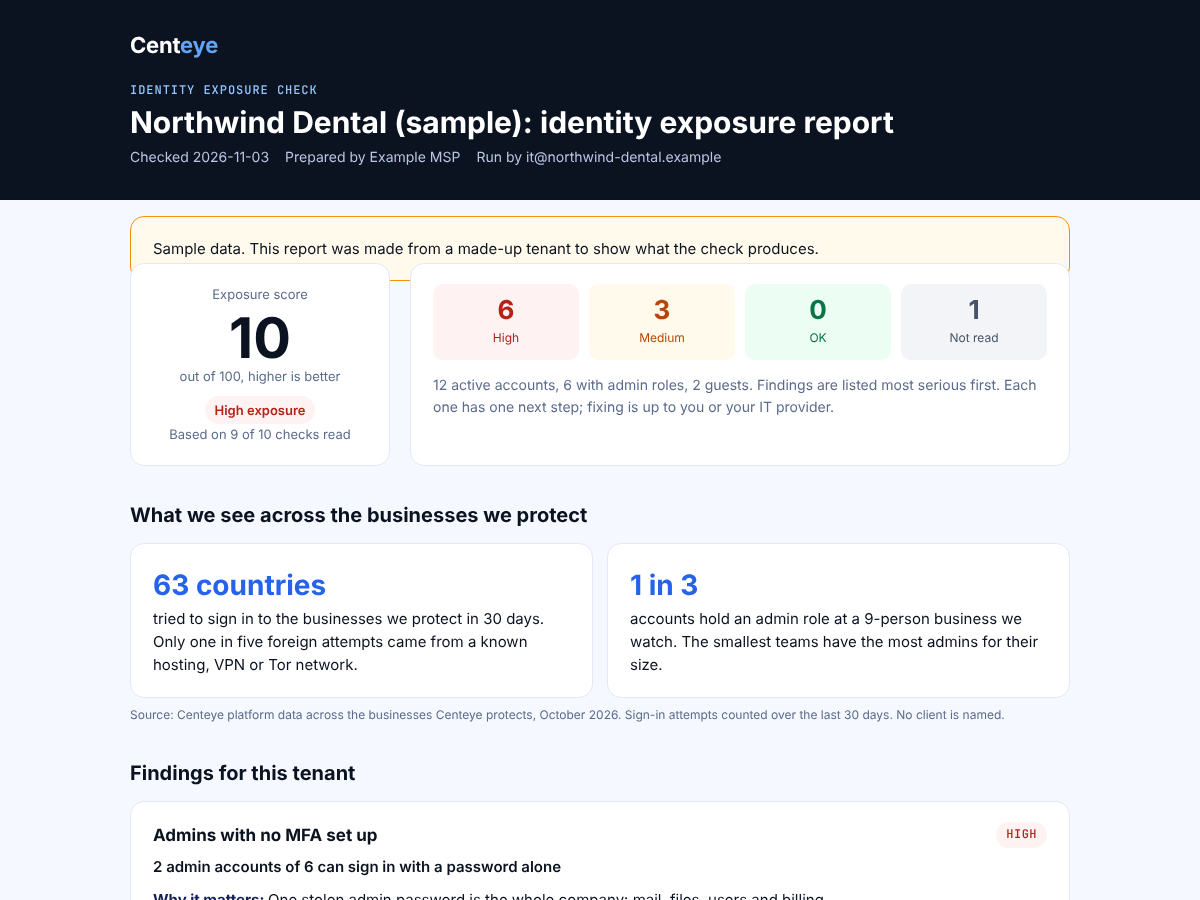
63 countries tried to sign in to the businesses we protect in 30 days.

1 in 3 accounts held an admin role at a 9-person business we watch.

Centeye platform data, Oct 2026

See a sample report →

Get the free Identity Exposure Check

About you

Who is it for?

How many customers do you manage?

About how many people sign in at your company?

Rather talk first? Book a 30-minute call.

The download appears as soon as you send the form.

What we see

The problem is rarely one big hole. It’s a lot of small open doors.

63 countries

tried to sign in to the businesses we protect in 30 days. Only one in five foreign attempts came from a known hosting, VPN or Tor network.

Blocking countries isn’t enough

Most attempts came from ordinary home and mobile addresses, the kind a country block or VPN list lets straight through. Centeye judges an address by behaviour, not location: new to this business, trying many accounts, failing in a pattern.

1 in 3

accounts hold an admin role at a 9-person business we watch. The smallest teams have the most admins for their size.

Too many people with admin rights

At a small company one stolen admin account is the whole company. Centeye lists every account with an admin role and flags a new admin grant the moment it happens.

Source: Centeye platform data across the businesses Centeye protects, October 2026. Sign-in attempts counted over the last 30 days. No client is named.

What Centeye Gatewatch caught on one test client in 30 days

Identity attacks by type, most common first. Real detections, made-up test client.

Threat24 h7 days30 daysWorstAccounts
Risky app permission grantedAn outside app was given access to mail, files or users. 0 2 1,343 High 6
Sign-ins from impossible locationsThe same account signed in from places too far apart to travel between. 5 25 159 Critical 31
Sign-ins from a new countryAn account signed in from a country it has never used. 7 25 34 High 1
Admin rights granted unexpectedlySomeone gained an admin role outside normal changes. 0 0 18 Critical 2
Guest account sign-insOutside guests signing in to the tenant. 2 8 9 Medium 7
MFA prompt floodsRepeated MFA prompts sent to wear a person down until they tap Approve. 0 0 9 Critical 5
Sign-in with no MFA from a new placeA password-only sign-in from somewhere the account has not been before. 1 5 6 Critical 5
Password-guessing attacksCommon passwords tried against many accounts (password spraying). 1 2 4 High 4
Successful sign-in right after an attackAn account got in soon after it was targeted. 1 1 1 Critical 1

Source: Centeye Gatewatch detections for a test client, 30 days to 4 Nov 2026. Accounts = distinct accounts each detection named. The free check is a one-time look at settings and 30 days of sign-ins; Gatewatch watches all the time.

What it checks

Ten checks on the accounts attackers go after first

  1. 01

    Admins with no MFA

    Admin accounts that can sign in with a password alone.

  2. 02

    Too many admins

    Who holds an admin role, and how many Global Administrators there are.

  3. 03

    Accounts with no MFA

    Everyone who has not set up an MFA method yet.

  4. 04

    Is MFA actually required

    Security defaults or Conditional Access, and whether old sign-in methods like IMAP and SMTP still work.

  5. 05

    Sign-ins from other countries

    Thirty days of sign-ins: which countries tried, which got in, and which accounts are being guessed at.

  6. 06

    Unused accounts still on

    Accounts with no sign-in for 90 days or more, including ones with admin rights.

  7. 07

    Old guest accounts

    Outside guests who still have access long after their last visit.

  8. 08

    Outside apps with access

    Non-Microsoft apps that can read or change mail, files or users, including ones that work with no one signed in.

  9. 09

    Accounts flagged at risk

    Accounts Microsoft has flagged as risky that nobody has dealt with (needs Entra ID P2).

  10. 10

    AI agents with their own identity

    Agents registered in Microsoft Entra Agent ID, who owns each one, and what each can reach.

Microsoft 365 / Entra ID tenants. Some checks need Entra ID P1 or P2 (included in Microsoft 365 Business Premium). Without it they say “Not read”, never a pass.

How it works

Three steps, about 10 minutes

  1. 1. Download

    Send the short form and download the script. It is plain PowerShell you can read before you run it.

  2. 2. Run it

    Open PowerShell where you saved it and run the two lines below. Sign in with a Global Reader account. The first time, a Global Administrator approves the read-only permissions.

    Unblock-File .\Centeye-IdentityExposureCheck.ps1
    .\Centeye-IdentityExposureCheck.ps1
  3. 3. Read the report

    A report opens in your browser: an exposure score, each finding in plain words, and one next step for each. It is saved next to the script.

For MSPs: one report per client

Run it per client tenant and put your name on it: .\Centeye-IdentityExposureCheck.ps1 -TenantId client.onmicrosoft.com -PreparedBy "Your MSP". The report says “Prepared by” you, and it is written for the client to read.

The report

Findings first, one next step each

Every finding says what we found, why it matters and the one thing to do next. The accounts behind each finding are listed so you can act on them. Anything the tenant did not let us read is marked “Not read”.

The check is a snapshot. It doesn’t watch for new attacks. When you want sign-ins watched every day, with the fix next to each finding, that is Centeye Gatewatch.

Open the sample report

Sample Identity Exposure Check report for a made-up dental practice, showing an exposure score and findings
Sample data: a made-up tenant.

Questions

Before you run it

Is the Identity Exposure Check really free?

Yes. There is no trial to start and no card. Fill in the short form, download the script and run it on as many tenants as you like.

What does the script change in my tenant?

Nothing. Every Microsoft Graph permission it asks for is read-only. It reads settings, admin roles, MFA registration and sign-in logs, then writes a report on your computer.

Does Centeye see my data?

No. The script sends nothing to Centeye. The report is written on the computer that runs it and stays there. It holds account names from your tenant, so share it only with people who should see them.

Does it read email or files?

No. It does not read mail, files or chats. It reads who can sign in, how, from where, and which apps hold access.

What do I need to run it?

A Windows computer with PowerShell 5.1 or 7, Microsoft’s Microsoft.Graph.Authentication module (the script offers to install it), and an account with the Global Reader role. The first run in a tenant asks a Global Administrator to approve the read-only permissions.

Why do some checks say “Not read”?

Some data needs a Microsoft Entra ID P1 or P2 licence, which comes with Microsoft 365 Business Premium. If the tenant does not have it, that check says “Not read”. It never counts as a pass.

Can an MSP run it on client tenants?

Yes. Run it once per client with -TenantId and add your name with -PreparedBy, so the report says who prepared it. It is a report you can hand to the client.

Does it fix what it finds?

No. Each finding comes with one next step in plain words. Watching sign-ins every day and acting on them is what Centeye Gatewatch does.

Checking AI agents too? See the free AI Exposure Check.

Get the free check